
Firebase Console
Follow below steps to obtain the Project ID and JSON Private Key File From the firebase console and update in the Netcore Customer Engagement platform.
Google Firebase console Link : https://console.firebase.google.com
Step 1
- Log in to your Firebase dashboard and navigate to your respective Projects.
- Click Project settings > General to obtain your Project ID details.
A Firebase project has a unique identifier called the Project ID. This ID is user-defined and serves as a reference name for the project across Firebase and Google Cloud.
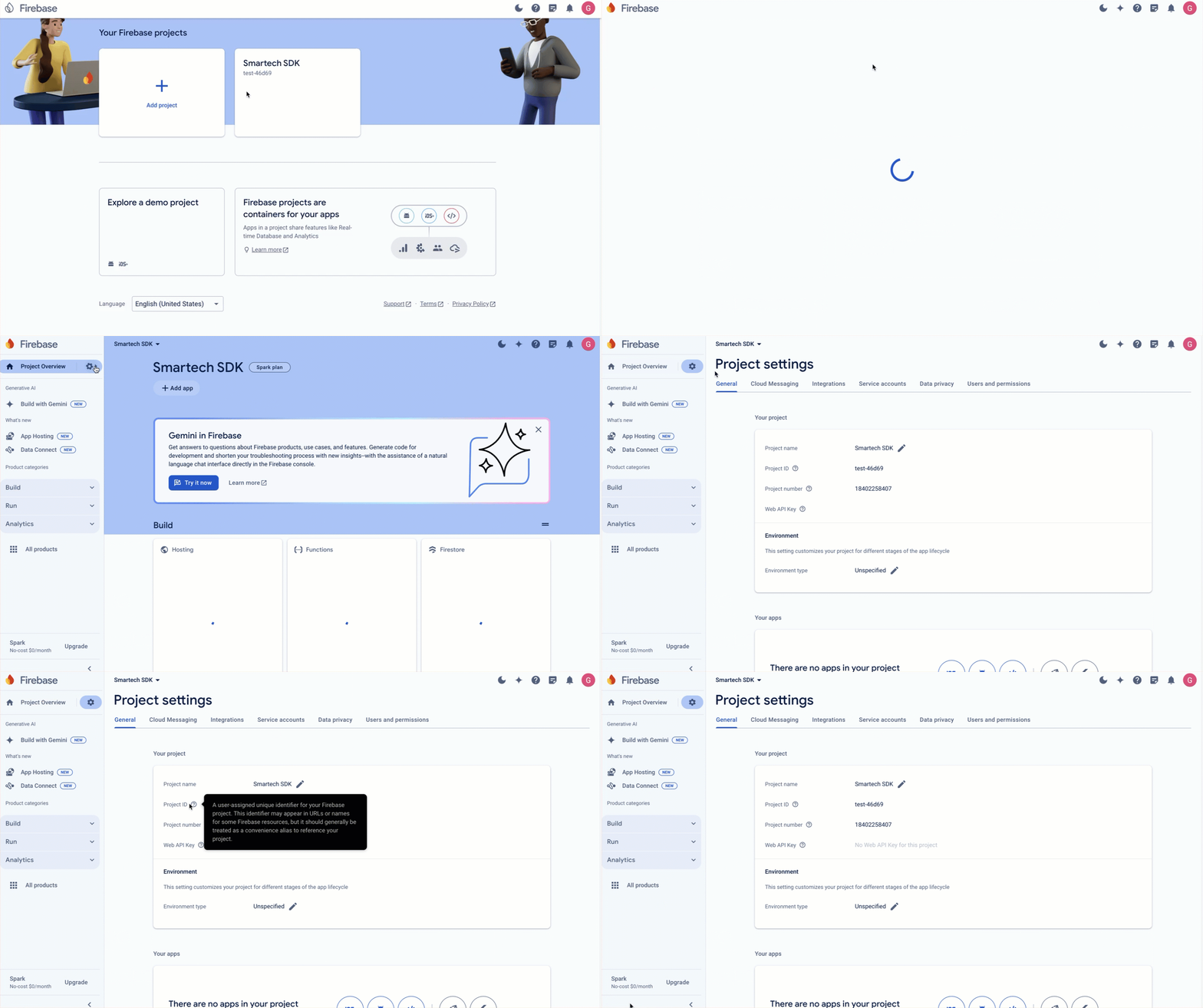
Firebase project settings
Step 2
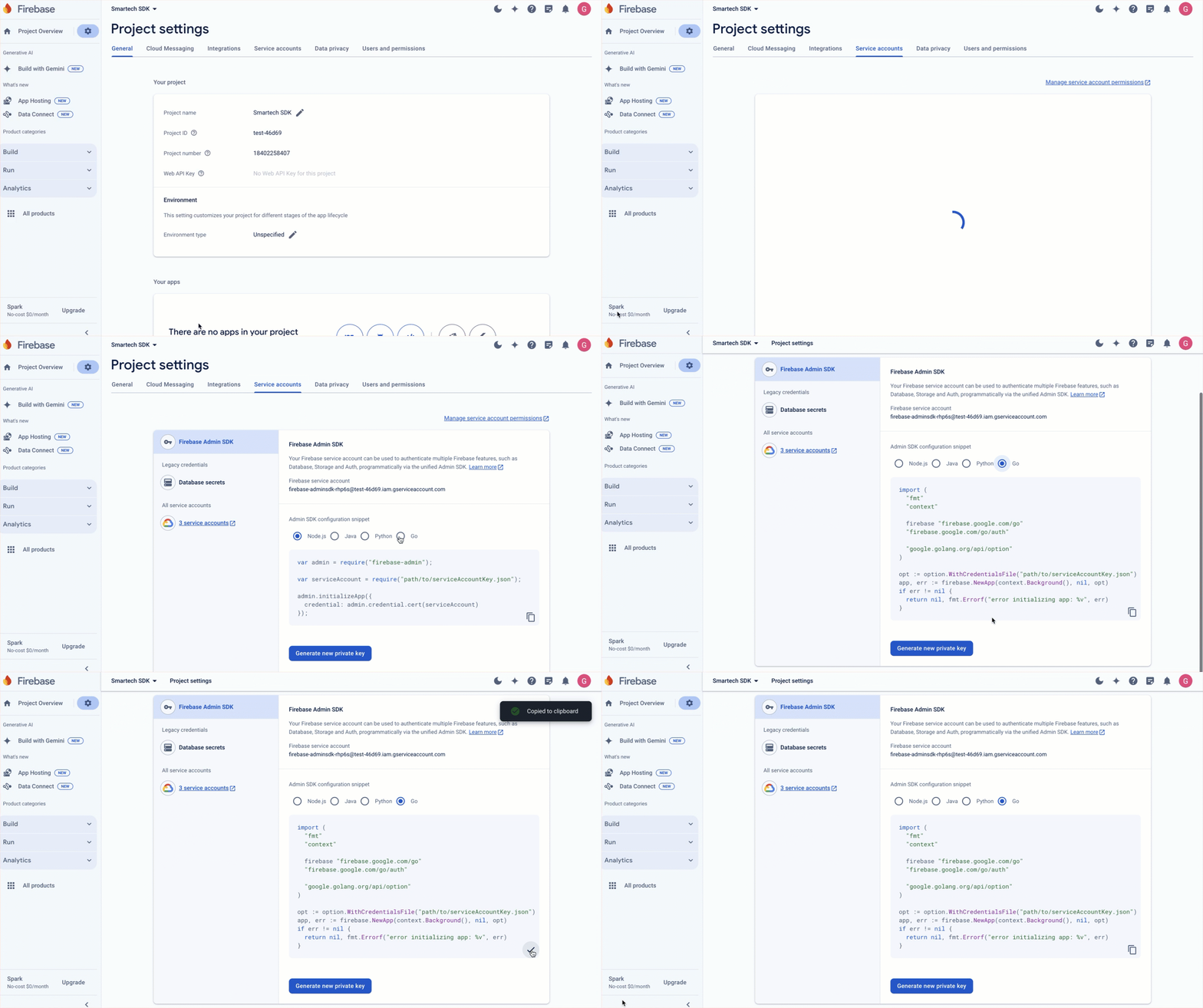
- Click Service account, and under the Firebase Admin SDK, select these Admin SDKs and select the Go option.
- Click the Generate new private key button to download the JSON file. Then, upload it to the CE dashboard.
Prerequisites
- Navigate to console.cloud.google.com and click API & Services
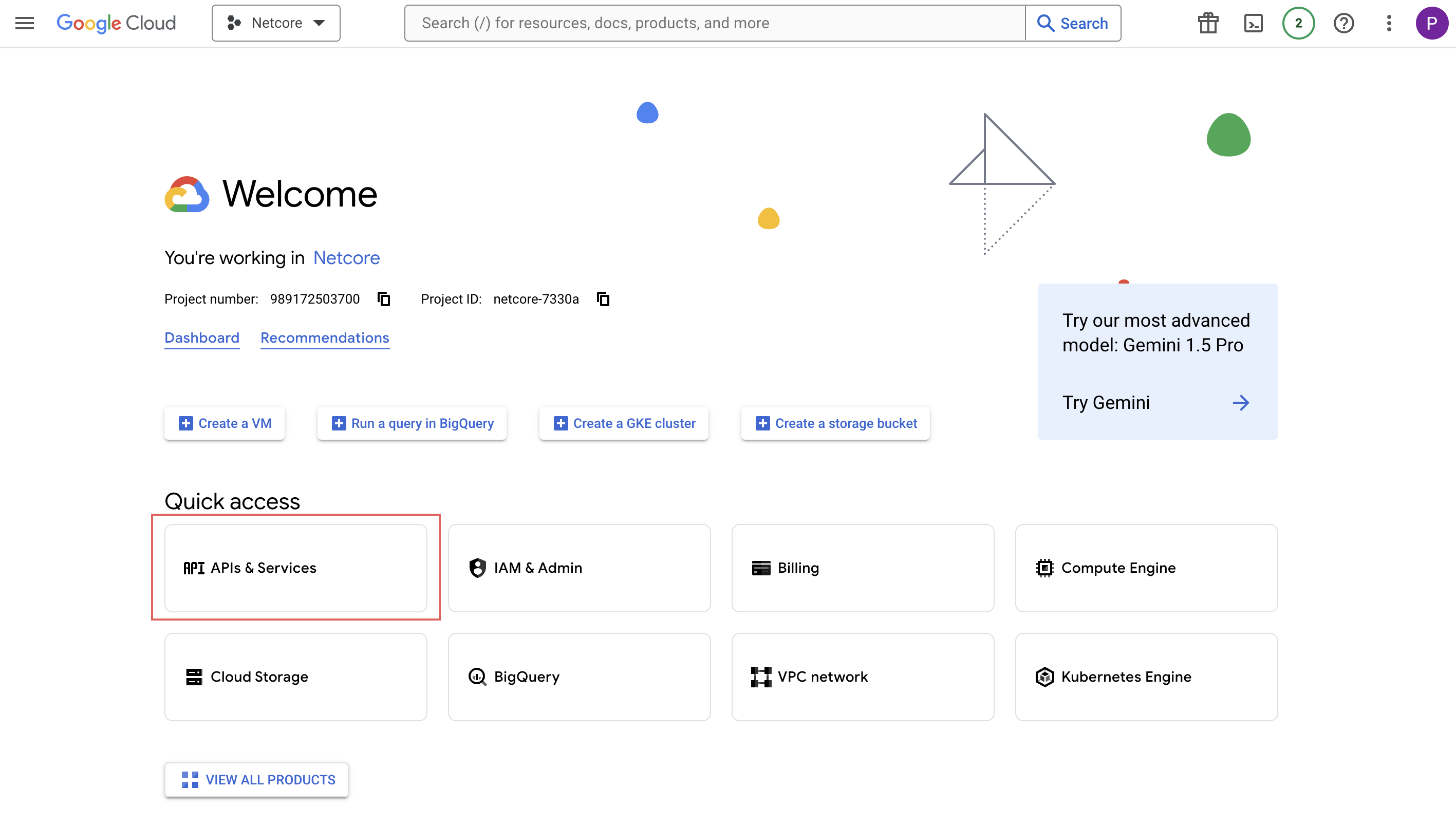
Navigate to API & Services
- .Click Firebase Cloud Messaging API link by scrolling down to the API list.
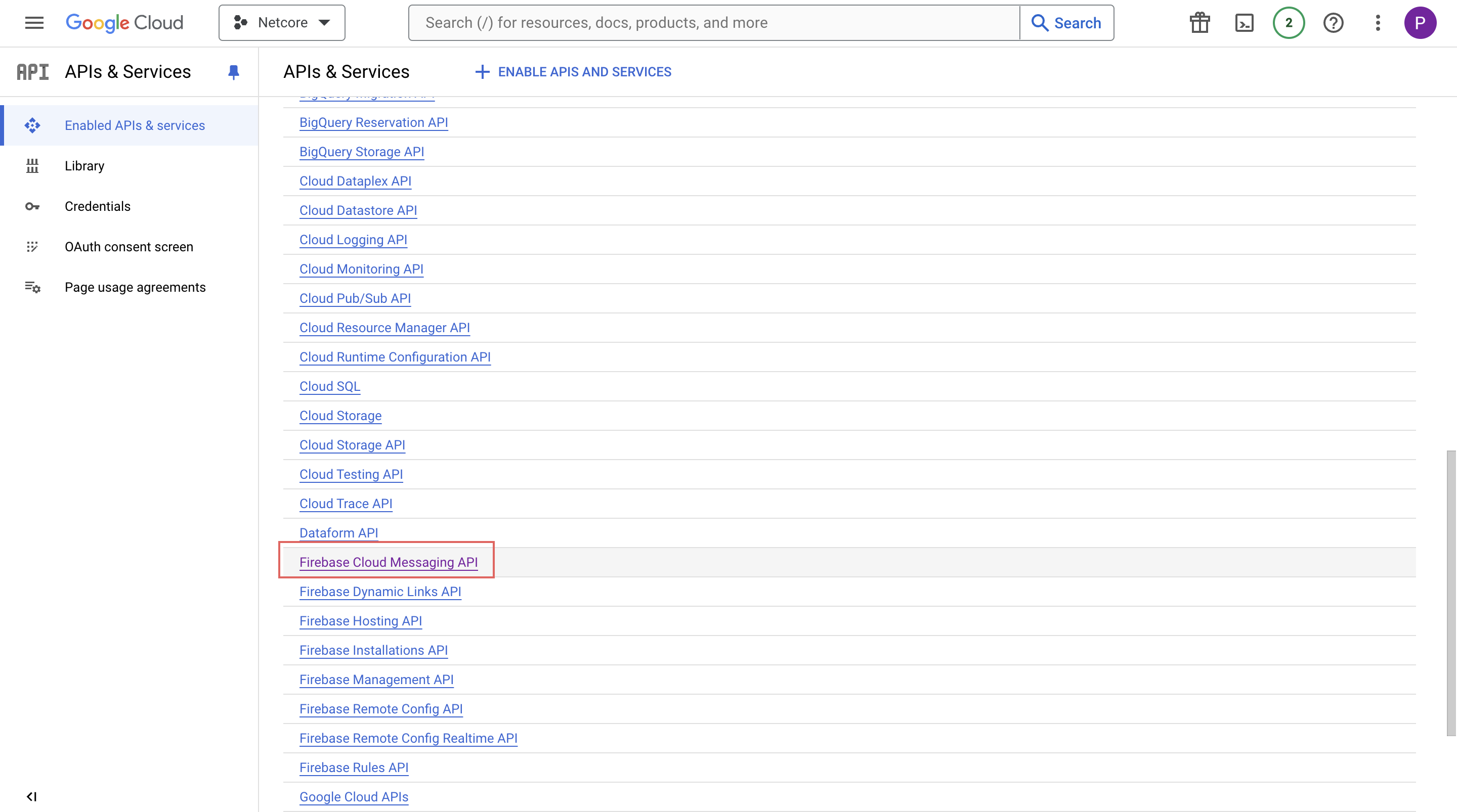
Select Firebase Cloud Messaging API
- 3.Click ENABLE if it has not already been entirely enabled.
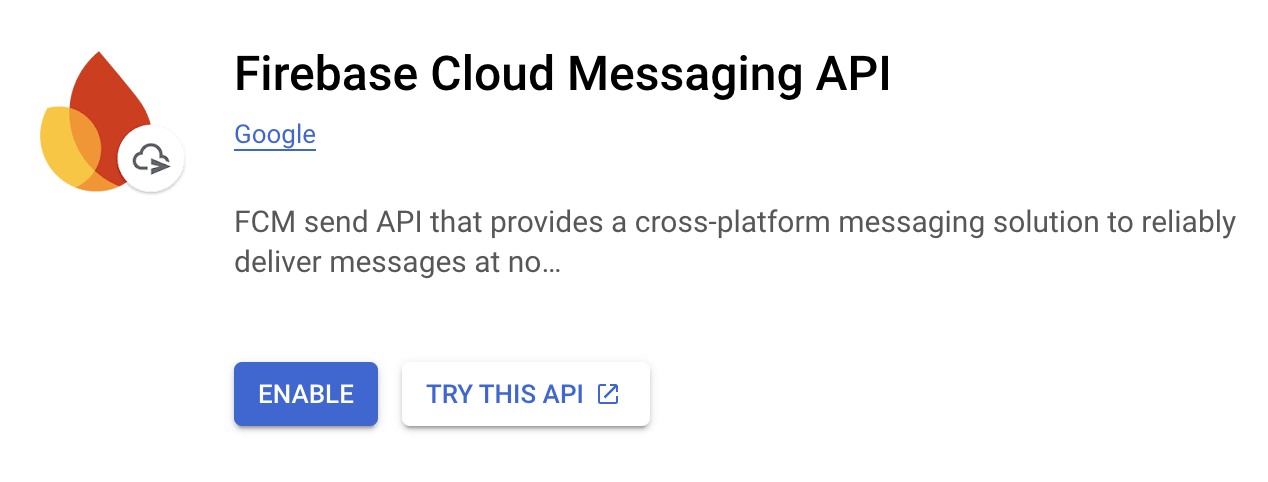
Enable Firebase Cloud Messaging API
Step 3: Configure HTTP V1 API in Netcore CE Dashboard
Configuring the latest HTTP v1 API in your Netcore CE Dashboard ensures seamless integration and optimal performance. Refer to the points below to set up the API for Android app platforms.
- Netcore Smartech panel link : https://login.netcoresmartech.com
- Android App Push Notifications : Follow these steps to configure the latest HTTP v1 API with Netcore CE.
- Login to the Netcore CE dashboard.
- Navigate to Settings > Apps.
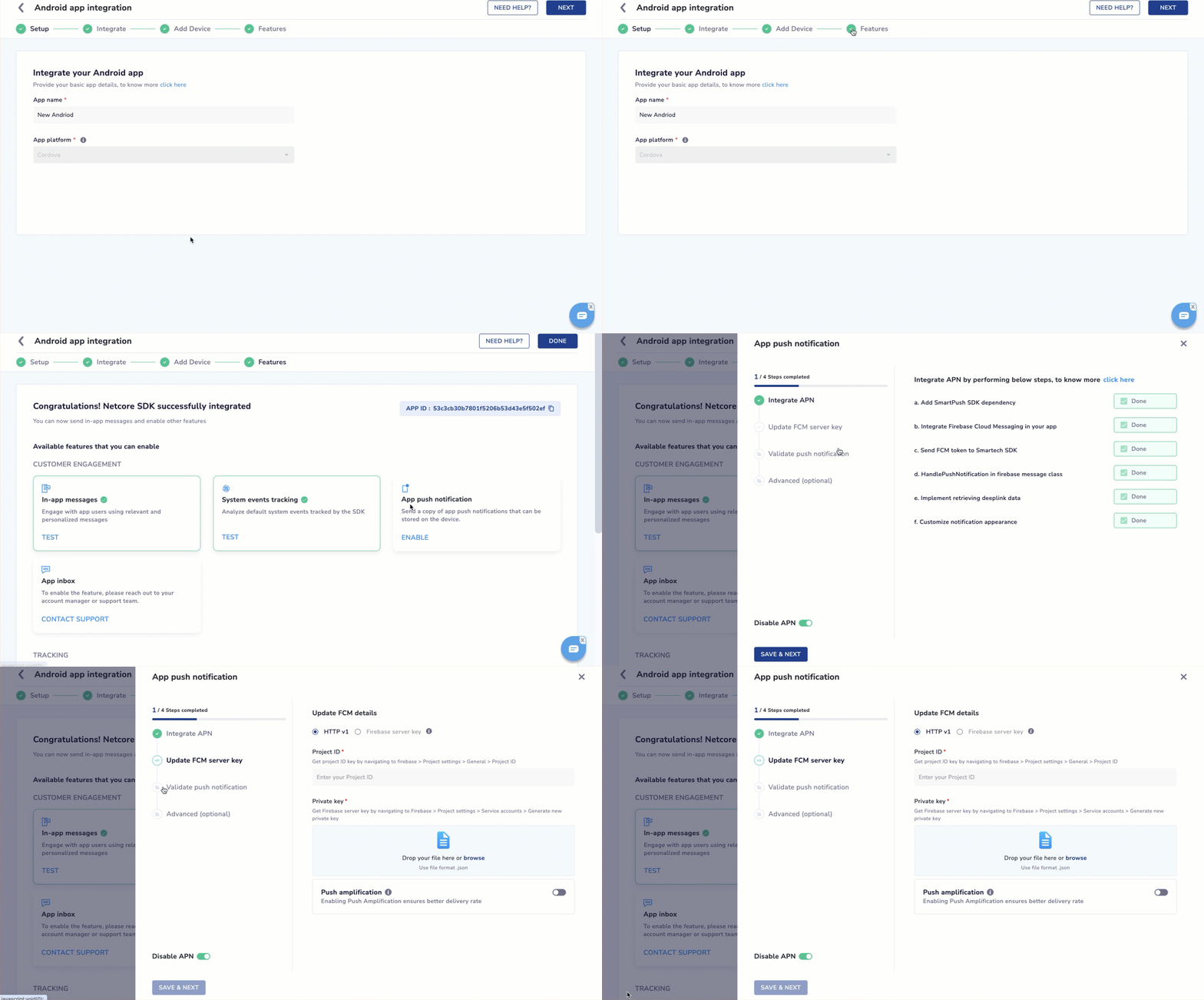
- Create an Android App in the App section with your app name, if you have not created one already.
- Edit any existing Android App and navigate to the Features section.
- Enable App push notification and navigate to the Update FCM server key section.
- Update the Project ID and Private key details acquired from the Firebase dashboard and save your changes
Step 4: SMT App ID
Follow these steps to get the SMT App ID from the Netcore CE Panel:
- Netcore Smartech panel link : https://login.netcoresmartech.com
- Log in to the Netcore CE dashboard.
- Navigate to Settings > Apps.
- Create an Android App in the App section with your app name, if you have not created one already.
4. After creating the Android App, the panel will generate a unique Android App ID.- Copy the App ID and update it in your Android manifest file inside the
tag as the SMT APP ID value.
Updated about 1 month ago